«I’m not a writer yet.»
«Sounds like you’re waiting for something to happen that’s going to turn you into one.»
Jake Sisko and the Muse in Star Trek DS9: «Muse»
I have written a few books and articles with Scrivener and I can still strongly recommend it. It is a software that just works and makes writing much, much easier.
However, my recent works were done within Obsidian.
While I use my main vault as a knowledge and information management tool, I created separate ones for the books I was writing. Given Obsidian’s flexibility, it dealt well with collecting the necessary information. Having multiple split windows next to each other as well as above each other was very useful to sort information. Additionally, the media files remain as they are, just added to a media directory.
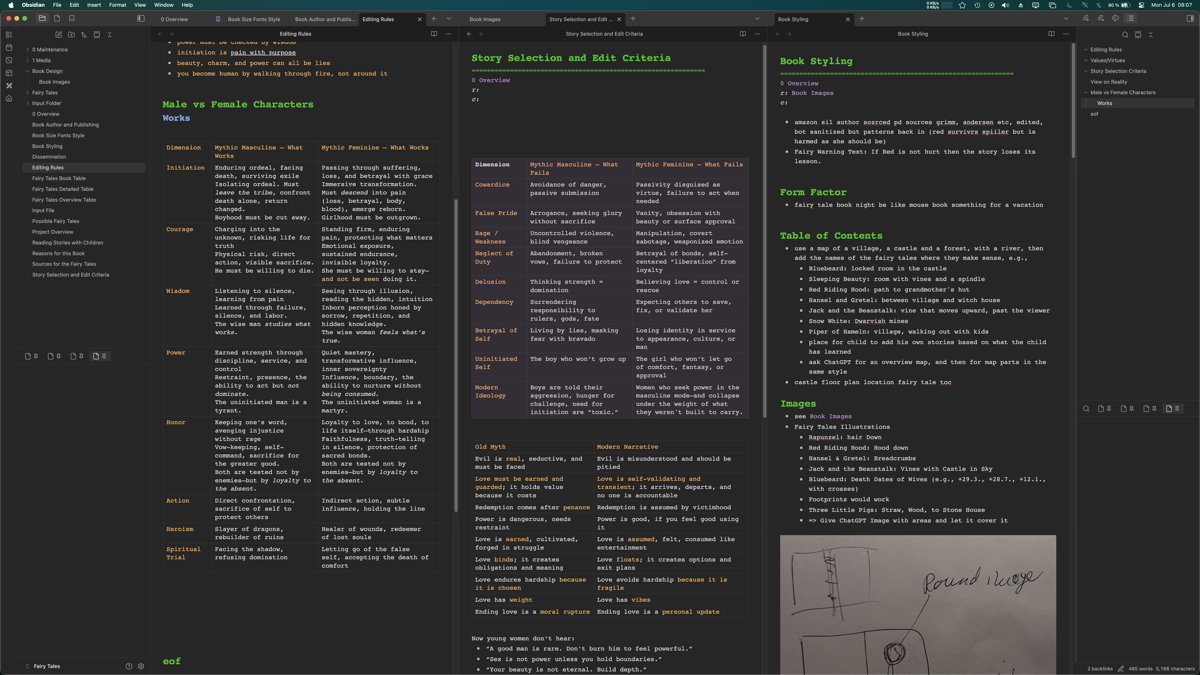
The Templater Plugin was very useful to create files with adapted prewritten text based on the directory they were created in (e.g., fairy tales had an info sheet about the story with links to different existing versions, notes, my versions, and a parent guide has specific text as well).
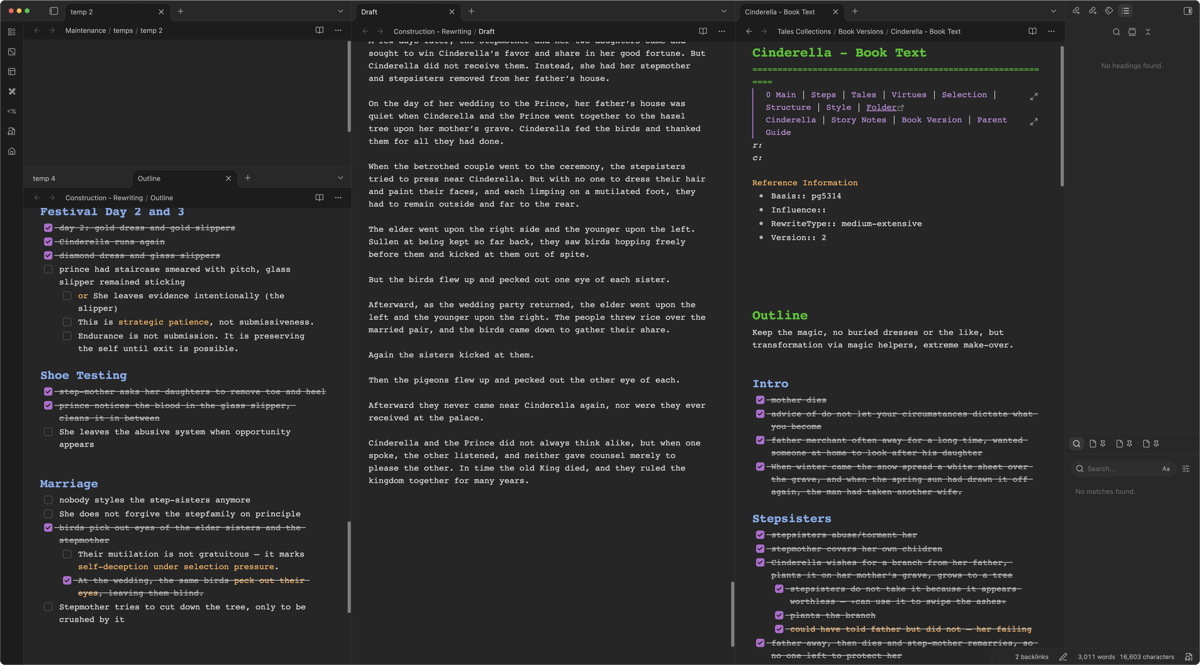
For writing/editing itself, creating a Content Outline (using checkboxes) and putting that split window next to the writing window made the task very comfortable. Sometimes I had a third window open with additional information, especially when rewriting existing stories (e.g., the original version). Given that these are splits within the same overall window, switching between the content was very comfortable. The writing itself was done in a draft.md file, so there was no editing in the file that contained the different versions.
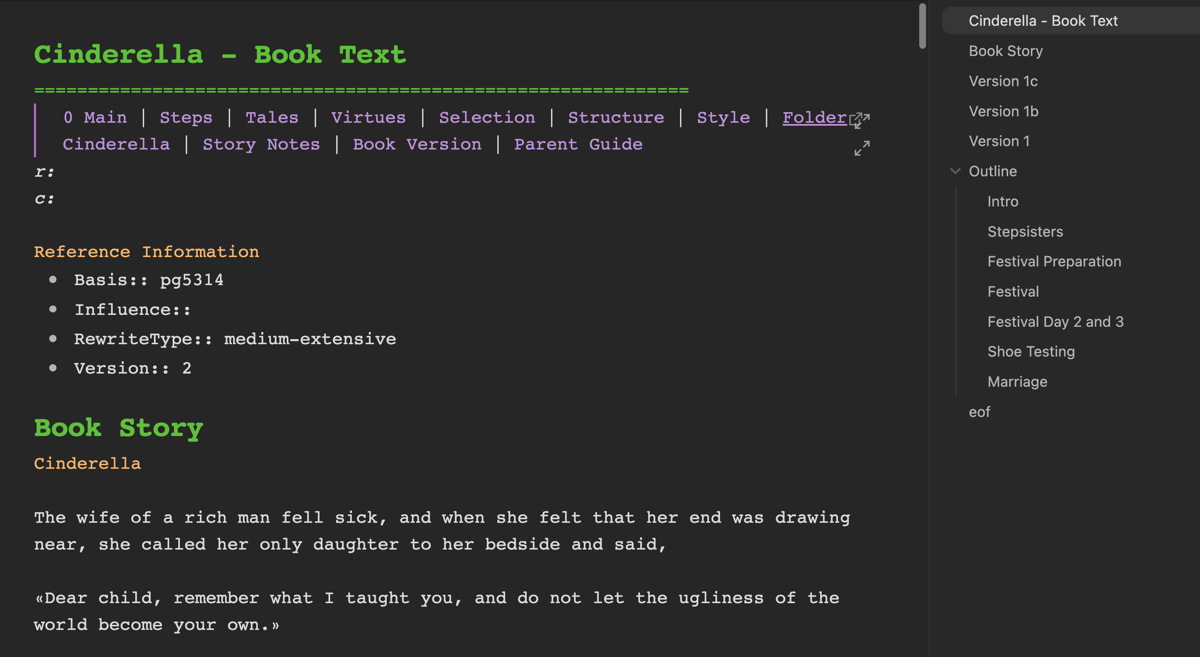
One major advantage of Scrivener is the comfortable version control (Snapshots). In Obsidian, I simply created a file in which I stored different versions, separated by headings.
I also created a graveyard.md file (and «graveyard 2.md», «graveyard 3.md», etc. files) to store information I did not use, but did not want to delete either. This way nothing got lost when I discarded information. That is usually the painful part of writing.
Once the draft was finished, I gave it to ChatGPT. It had customized instructions depending on the kind of text I was writing. For example, for a non-fiction book, I gave it the overall book idea, what the book assumes, what it is about, what its goals are, and what its underlying model is. Then I asked it for actionable feedback. For example,
- Summary: A concise summary of what the text is about.
- Good/Leave As Is: What is good and should be kept,
- Showstoppers (if any): Things that break the method, confuse usage, or contradict the book’s purpose.
- Improve: What should be improved, and
- Unclear: What is unclear.
I also provided additional criteria for feedback.
For a book containing fairy tales, I did provide the underlying virtues and went for two phases. Phase I was examining whether the story worked, focusing on structural issues:
- Does the story work for the book? Is it interesting, related to the virtues, understandable, etc.? Please provide a short assessment.
- Could the story be made stronger by adding, removing, or changing something? Please provide suggestions if applicable in short bullet points.
Only when that part was finished — which usually took a couple of iterations — came the improvement of the text itself. I gave ChatGPT specific instructions to preserve the voice and the tone of the book, but correct spelling, grammar, punctuation, idiom, and non-native phrasing where needed. I also instructed ChatGPT to provide me with the updated text.
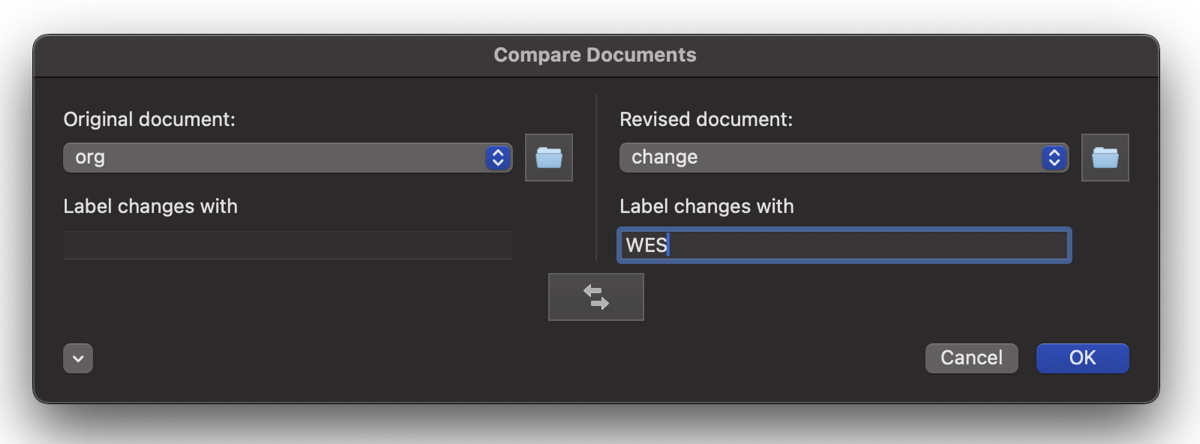
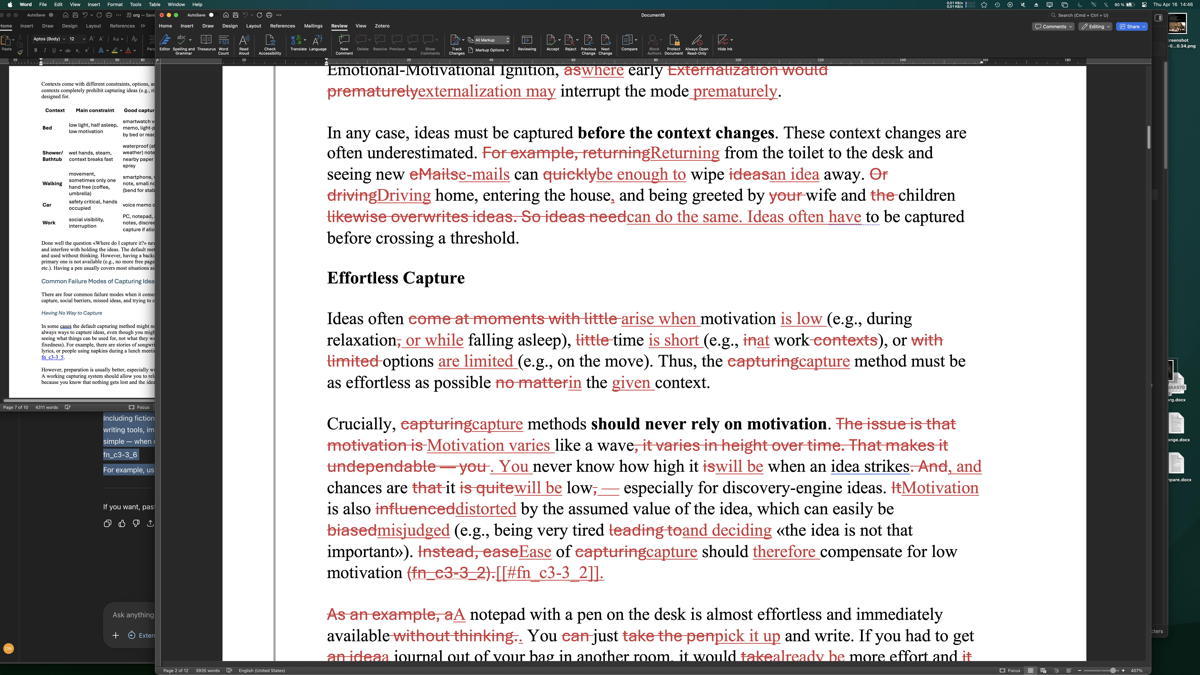
As these were grammar/spelling issues, I used Microsoft Word’s document comparison to quickly assess and accept/discard the proposed changes. Simply using an org.docx with my text and a change.docx with ChatGPT’s revision, and then using Compare Documents:
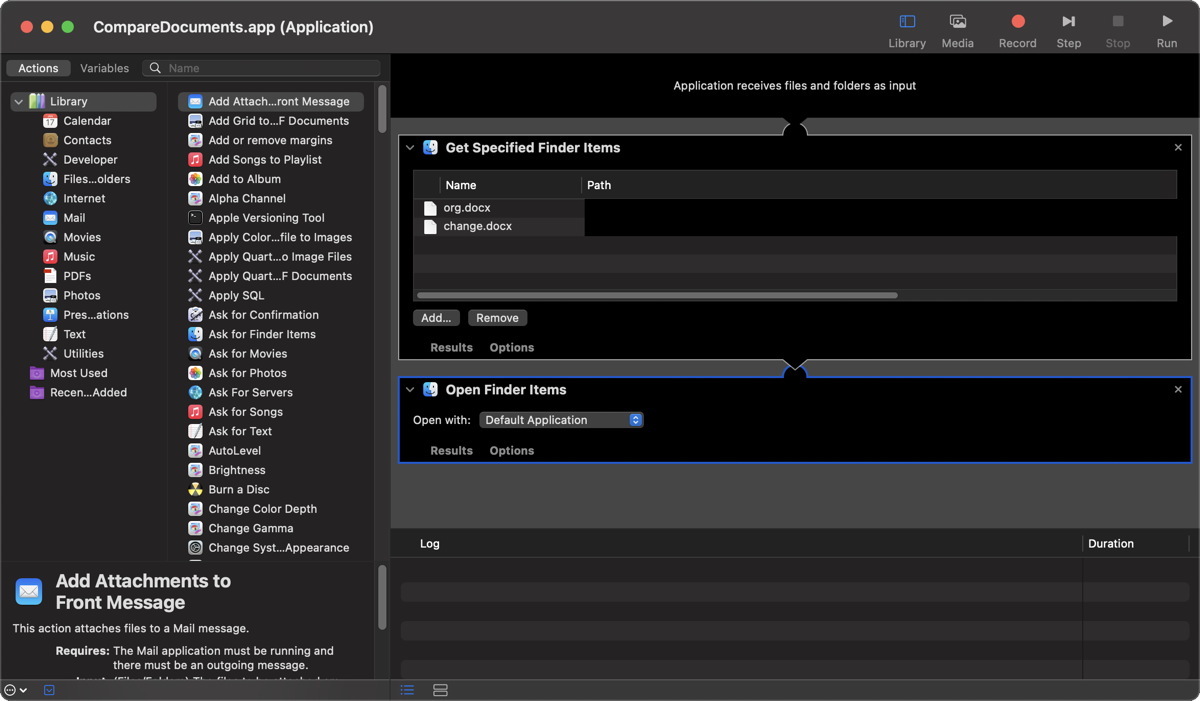
As I used that comparison quite often, I did create an Automotor shortcut to open both documents:
This made checking the changes very easy, and much easier than asking ChatGPT itself to highlight the changes in the output:
As all the material ended up in an Obsidian vault, a backup script synced the vault contents (via macOS’s rsync) to iCloud drive (/Users/NAME/Library/Mobile Documents/com~apple~CloudDocs/FOLDER/), in addition to using local backups.
Overall, a rather comfortable writing experience. It lacks human feedback, but allowed for deep work with little if any waiting periods or delays.