Another Year, another Life-Newspaper

When the age of the Vikings came to a close, they must have sensed it. Probably, they gathered together one evening, slapped each other on the back and said, “Hey, good job.”
Unknown

I have already written one posting about a life-newspaper, but given that during the Silvester party I talked to a few people about it and they liked the idea, I think I post a similar posting again.

The life-newspaper for 2010 is too personal to display it here, but it covers issues like:

  • Editorial (short summary)
  • Science & Work (given that I am a scientist)
  • Education and Courses (skills/knowledge I have learned, partly in courses, partly on my own)
  • Finances (financial overview)
  • Personal Stuff (clothes, identity, photos, etc.)
  • Culture (Literature, i.e., books I have read; Cinema/DVDs)
  • Technology (MacBook, Photography equipment, iPhone 4)
  • Health (issues 2010, overview)
  • Quotations (good ones I stumbled over in the last year)
  • Sports (the kinds I did last year)
  • Inspirational people 2011 (two people I want to remember who do now know me but have influenced me)
  • People 2010: Family (some things that happened in my family)
  • People 2010: Private (persons I know outside of work)
  • People 2010: Dating (always good for a laugh — and cry)
  • People 2010: IWM:KMRC (i.e., work)
  • Travels (visits home,  to conferences, and vacations)
  • Own Art (things I created 2010)
  • Lessons of 2010 (some things I have learned the past year and do not want to forget)
  • Goals for 2011 (looking back at the past year, what do I want to achieve the next year?)

Creating it was fairly easy — you have to sort a lot of material, text and images, and order it. How you do it depends on your computer skills, time and tools. Personally I used Circus Ponies Notebook to create an outline and copied the text into the outline and used simple folders for the images. For getting the content right I did the following steps:

  1. I went through my Aperture photo archive and searched for images taken in 2010
  2. Opened the history/archive page of my private wiki where I keep a list-overview of the projects I did the past year
  3. Opened the archive/history page of my work wiki where I keep a list-overview of the work projects I did the past year
  4. Created a smart list that contained all eMails written after 31.12.2009, I sorted them by sender to get a quick impression of the important topics 2010 (one advantage if your communication with your friends is mostly by eMail)
  5. I looked at my order history in Amazon and iTunes
  6. I asked myself the question what I did not do 2010 but wanted to do — there will be not records of these events so I have to remember them by myself

Then I created the Life-Newspaper with an Newsletter Template from Pages (Modern Newsletter).

I think such a life-newspaper is very useful, not only to remember a year in a condensed form, but also to reflect on a year. I think this is one of the reasons why people do New Years resolutions — between Yule and New Year is the time where they have time to reflect on their life, the end of the year gives them some kind of “let’s take stock” feeling. But not everyone can do this and, frankly, I reflect about my life on a lot of different occasions. But even then most of the results are written down and end up in the newspaper at the end of the year. Not logical, but very useful — and, at times even fun.

I am taking a hiatus for some time …

“I’m old, Gandalf. I know I don’t look it but I’m beginning to feel it in my heart. I feel thin … sort of stretched, like butter spread over too much bread. I need a holiday. A very long holiday. And I don’t expect I shall return. In fact I mean not to.”
Bilbo in “The Lord of the Rings: The Fellowship of the Ring”

I started this blog as an add-on to the digital version of my book on organizing creativity on 31st of May 2009. Since then I have written about 125 blog postings. I even manged to write a posting a day for over a month recently.

But at the moment, I’m burned out and I need some time off.

However, even if there are no new postings here for the next few days/weeks/months/years, I strongly suggest to have a look at the book itself, which can be read (completely) on these pages (use the book navigation at the bottom of the linked page) or browse through the blog entries I have written so far. I especially like the book pages that creativity is more than one idea, how to organize creativity, the creative process (and that creativity needs hard work and time), and the different sections on capturing and collecting ideas (for the later especially using Wikis to organize personal creativity). Of the blog entries, the ones dealing with DokuWiki and Scrivener are very popular and I agree, they are helpful and very interesting:

Wikis

Scrivener

Well, I hope you have fun reading here …

Best regards

Daniel

Literature Reference Management with DokuWiki

They must often change, who would be constant in happiness or wisdom.
Confucius

I switched from handling my literature with Circus Ponies Notebook (CPN) to Dokuwiki. I really like CPN, but it became too slow as the file became larger, even with all the images and PDFs not embedded in the file-directory itself but linked to it. DokuWiki might not be that much faster in showing the page, but it’s displayed in a Browser and I’m used to a slight latency. Also, my literature is split into hundreds of text files and not one large file that must be loaded. Consequently, there should not be any decrease in speed over time when the collection gets larger (up to 300k files I think).

A few things make DokuWiki especially suitable for handling files:

Page Creation with Ferret

I use my Ferret Frame and have modified it to allow the quick creation of entries in the literature-directory of DokuWiki (it’s a top-level directory). Clicking the literature radio-button (checked by default) and entering a name for the literature (e.g., “Goodwin 2009″) creates the page in the literature directory (e.g., “literature\goodwin_2009.txt”). This makes entering literature very quick.

Using author_year for files

I have seen different ways to refer to literature. Some people assign numbers (#1, #2, #3, …) to texts, others use the name of the author(s) and the year. I think that the later is way superior. First, you will refer to your literature by author and name only (e.g., in an article). Expert researchers can cite the author and year of a study from memory, and referring to your literature the same way will help you to achieve this feat more quickly (or do you want to say: “In my literature list No. 7302, the authors did something similar”? ;-) ).

It is also short enough as a file name (remember that DokuWiki uses the name of the page as a text file name). Like with the APA citation rules, you should probably use “et al.” when a text was written by more than 6 authors. You will also quickly spot double entries (when you try to enter a text with an author_year that already exists, Ferret Frame will open this page in edit mode). If it is really a different text, you can simply add an “b”, or “c” behind the year (e.g., resulting in Goodwin_2009b.txt).

Using tags and pagelist (see below) to get a list of the entries also allows you to enter the citation later. I find it more useful to quickly create the page (and author and year is something that is easy to find in almost all cases). So the page is created as author_year. The header of the page (first headline with ====== author_year ====== is then replaced by the citation as far as I know it. If some information is missing, so be it. I can always add it later. But author and year must be known and exact, otherwise you cannot spot duplicates — and yes, you might really forget that you have already entered a text into your literature list.

Templates with Ferret

Given that most entries look the same in the beginning (e.g., Title, Citation, link to PDF file, notes-section), I created templates to accommodate the most common literature types. After creating the page with the Ferret Frame, I simply click on the link to the respective template and the standard content is copies into the open text field (text area) of the wiki. For example, I updated the template.php of Ferret to include a template for an article in the function transfertitel(pagetype,titelnameheader):

if(pagetype == “article”) {
tagline = “[[:literature|{{:back.gif }}]]====== ” + titelnameheader + ” ======\n\n  * **Citation:** xxxx\n  * **Source:** PDF\n  * **Key-Points**\n    * xxxx\n  * **Strengths**\n    * xxxx\n  * **Weaknesses**\n    * xxxx\n\n—- \n\n===== Abstract =====\n\n===== Theory =====\n\n===== Research Question(s) =====\n\n===== Method =====\n\n==== Design ====\n\n==== Participants ====\n\n==== Instruments ====\n\n==== Procedure ====\n\n===== Results =====\n\n===== Discussion =====\n\n===== Conclusion =====\n\n\n{{tag>literature article}}\n====== eof ======”;
};

which can be selected with the link <a href=”javascript:transfertitel(‘article’,document.Jswdata.Seitentitel.value)”>Article</a>

Taglist with Ferret

Important for handling literature are tags. I’ve long given up the use of static categories. For example, I’m interested in mobile media, museums, and electronic guidebooks in museum. Suppose I have a text regarding electronic guidebooks, where do I put it? In the electronic guidebook category? But it also belongs in the mobile media and the museum category. Tags solve this problem quickly: tagging the text with mobile media and museum assigns the text to all three categories — mobile media, museum and electronic guidebooks in museums (= mobile media + museum). Given that tags are hard to remember (was it “museum” or “museums“?) they are listed in the Ferret Frame and can be assigned by a simple click on the respective tag.

Pagelist with predefined tag search terms

I have created some pages that consist of predefined search terms. For example, one link from my main Literature page leads to a page with the following content:

[[:literature|{{:back.gif }}]]====== Literature – Museums ======

{{topic>literature +museum}}

~~NOCACHE~~
====== eof ======

This page displays every page that is tagged with literature and museum. Why the literature tag? It’s assigned per default to all my literature entries (it is in the template) because I have other pages (e.g., in community – people) where the tag museum is used. Using tags for the main categories of my wiki allows me to quickly narrow down the search to — here — literature.

Similarly, other search terms can be used, e.g., for Electronic Guidebooks in Museums I would use: {{topic>literature +museum +mobile_media}} and for mobile media outside a museum I would use {{topic>literature -museum +mobile_media}} … and so on.

Note: I have changed the pagelist plugin settings in Admin – Configuration Settings – Pagelist Plugin Settings to no heading line, hide date column, hide user column (it’s a single user wiki), hide description column, hide comments column, hide linkbacks column, hide tags column, but enabled show the first headline instead of the page name. The last setting shows me the whole citation (which I use for the page header), e.g, for the goodwin_2009.txt the text “Goodwin, C. J. (2009). Research in Psychology. Methods and Design. Wiley.” is shown (yes, it’s an incomplete citation).

Note 2: I will probably write a PHP script that allows for a similar function like in many online databases — you can select multiple tags and get the results quickly. But this will take a while.

Author List with PHP

A PHP Script (rename it to .php) creates a page in DokuWiki that has an alphabetical Listing of all entries in the literature-directory. While a complete literature list can be build on demand via the pagelist-plugin and the tags used (here: all that included literature), using PHP to create/update such a file once is much quicker. The entries are actually saved in the text file and do not need time to create on loading the page.

Acrobat OCR

Given that most of the literature are PDFs (or can be converted into PDFs), I have used the Acrobat OCR feature to recognize the text in the file and make it selectable if this is not the case. This allows me to quickly copy and paste content from the file to my notes. Note: There is a plugin for Firefox for Mac that allows you to open the PDFs in Firefox itself. I’m not sure yet whether I prefer this or whether it is better to use the icon that appears in the lower part of the PDF to open it in Acrobat itself. Currently I’m using the later and make notes first in a normal text editor (Text Wrangler) and copy my notes into the Wiki later.

Quickly Linking to a Literature Page (or any other page) in the Wiki

Note: For notes, I have switched back to Circus Ponies Notebook. I still think that the Wiki is perfect for long term storage of literature, but it’s much easier to go through the literature (e.g., with a list of relevant literature based on tag search or portals) and then copy the relevant notes into a CPN outline to use it for the specific project (article, proposal, book, etc.).

Given that I use pages in the notes-directory to make … well … notes about topics that are not specific to an individual text (e.g., information about Mobile Eye Tracking that combines information from multiple texts) I need a way to refer to the original literature. That’s one aspect where I miss CPN (using the keyword feature to assign a source-keyword to each cell and then simply copy the cells into a new document made this very easy and non-distracting).

However, I’ve modified Ferret to include four links that grab the location and name of the page that is currently displayed and modify it so that links can be made quickly. If I want to refer to a text in my notes, I open my wiki in another Firefox Tab. Then I go to the literature I want to cite. Next I press the “as superscript” Link, which gets me the wiki-link to this page in the text area (for example, the literature\goodwin_2009.txt page would lead to the link: <sup>[[Literature:Goodwin 2009]]</sup>. Copying this link and pasting it at the respective place in the other tab quickly creates a link to this literature text. I’ve tried out a few other ways to link, e.g., the direct link ( [[Literature:Goodwin 2009]] ), the link as footnote ( (([[Literature:Goodwin 2009]])) ), and also the link with a given title (here: link, <sup>[[Literature:Goodwin 2009|Link]]</sup> ). However, I think using it as superscript is the best way (using it as a footnote and then holding the mouse over the link and clicking on the link that appears does not seem to function, somehow the tilde (~) is not preserved).

Grabbing the Link from an existing page by clicking on Get Link

Grabbing the link to an existing page by clicking on the links in the ferret frame

allows you to quickly copy and paste the link from the text field below to the page where you want to make the reference:

How the different links look like in the text

which allows for these four possibilities to link it:

How the different links look like on a page

This feature also allows me to quickly create a portal page or jot down below an article page which literature I have used. I simply open the respective literature page in another frame, get the link, and paste it on the page it should go. No need to use the link wizard and I can predefine how the link should look like.

It’s probably too soon to say whether this kind of literature management works — but I think so. My notes are preserved for a long time in an open standard (text files!!!! yeah, baby :-) ) with all benefits of tags and auto-lists and so on. The work with the source is facilitated by getting links and letting pagelist/php-script integrate the pages into the wiki structure. In short, it should work … whether it will be usable for me for the future … I’ll see, in a year or so.

File

You can use the Ferret Frame described here and here or have a look at the modified template.htm source code (you need to change the LINKS for it to work, and probably also the top.wikiframe.document.forms[0] number — 0 works for the monobook template, the original dokuwiki template used 4 I think). If you want to modify your template file, add the following functions before the </script> near the end of the template.php (sorry, I know, it’s ugly code but I works):

function get_address() {
prestep = top.wikiframe.location.href.replace(/http:\/\/localhost\/~ipsych\/sci\/doku.php\?id=/ig, “”);
sp = prestep.split(‘&’);
step = sp[0];
step = step.replace(/_/gi, ” “);
step = capitAll(step);
document.Jswdata.Verzeichnisinfo.value = “[[" + step + "]]”;
}

function get_address_footnote() {
prestep = top.wikiframe.location.href.replace(/http:\/\/localhost\/~ipsych\/sci\/doku.php\?id=/ig, “”);
sp = prestep.split(‘&’);
step = sp[0];
step = step.replace(/_/gi, ” “);
step = capitAll(step);
document.Jswdata.Verzeichnisinfo.value = “(([[" + step + "]]))”;
}

function get_address_upper_link() {
prestep = top.wikiframe.location.href.replace(/http:\/\/localhost\/~ipsych\/sci\/doku.php\?id=/ig, “”);
sp = prestep.split(‘&’);
step = sp[0];
step = step.replace(/_/gi, ” “);
step = capitAll(step);
document.Jswdata.Verzeichnisinfo.value = “<sup>[[" + step + "]]<\/sup>”;
}

function get_address_upper_link_link() {
prestep = top.wikiframe.location.href.replace(/http:\/\/localhost\/~ipsych\/sci\/doku.php\?id=/ig, “”);
sp = prestep.split(‘&’);
step = sp[0];
step = step.replace(/_/gi, ” “);
step = capitAll(step);
document.Jswdata.Verzeichnisinfo.value = “<sup>[[" + step + "|Link]]<\/sup>”;
}

capitAll = function(str) {
// uses example from http://www.webdeveloper.com/forum/showthread.php?t=138118
str = str.toLowerCase().replace(/([-\.']) */g,’$1 ‘);
var rx= /\b([a-z'-\.]+)\b/ig;
str = str.replace(rx,function(w){
return w.charAt(0).toUpperCase()+w.substring(1);
});
return str.replace(/^ *|(\-|’) *| *$/g,’$1′);
}

and add the following lines below the Create New line (<a href=”javascript:create_new()”>Create New!</a>):

<p><a href=”javascript:get_address()”>Get Link</a> | <a href=”javascript:get_address_footnote()”>as Footnote</a> | <a href=”javascript:get_address_upper_link()”>as superscript</a> <a href=”javascript:get_address_upper_link_link()”>-link</a></p>

Your Modifications

As usual, you a free to modify the code as long as you cite the source and make it available for free (if you make it available). Given that I’m by no means an expert in JavaScript and PHP, you probably should modify the code (I want to work with the tool, not on it.)

How to Write a Dissertation Thesis in a Month: Outlines, Outlines, Outlines

“Writing a book is an adventure: to begin with it is a toy and amusement; then it becomes a master, and than it becomes a tyrant; and the last phase is just as you are about to be reconciled to your servitude – you kill the monster and fling him to the public.”
Winston Churchill

Last year I took a vacation for a month to write my dissertation thesis. And it took me that one month to come up with the first draft, which made it into the final version with only minor alterations (but a lot of error checking). While the lack of major alterations might be in part due to my academic advisers (and my) wish to finish the work as soon as possible, I think the major part of this is due to the way it was written, or rather structured.

Doing a dissertation thesis is a major project, the writing itself is a different but not less complicated animal. I think it is a mistake to start writing in sentences unless you know the structure and the content. Once you write sentences, they stick together and are hard to change. And I think it is nearly impossible to write a 200+ pages work if you do not structure it beforehand, and there is a great way to do so: Outlines.

Most people know outlines from school. Many teachers try to give this valuable hint for exams. Plan what you write before you start writing. An outline for a dissertation is similar, but not quite the same. For one thing, it is much more detailed.

How detailed? Well, everything you want to write later should be included in it, without the actual sentences. Metaphorically it should contain the bones of the text, the whole skeleton, and hints for everything else. This means

  • the order you want to write the different pieces of information that make your theory
  • the notes you made about your studies, the design, the participants, the instruments, the procedure
  • the results of any statistical analysis you made
  • the ideas for and the issues you want to raise in the discussion

It also includes any notes you do not want to forget and any ideas, e.g., for further studies even if you cannot realize them (a valuable hint from my informal academic adviser: you will have ideas of things you want to realize but you cannot realize everything, so make notes and raise these points in “future work”).

Given that the outline only contains the information, but not the sentences, it is easily changeable. And once you get in the flow of adding flesh to the bones, you can write really fast. An additional benefit of using outlines: I used the same outline as a basis for the articles I wrote about my dissertation. The outline also allows you to focus only on the relevant part by using the hierarchical structure: You can arrange the information similar to the structure you use for your PhD thesis and simply fold in the parts you do not need at the moment. This way, thousands of lines of text become easily manageable. For example, you can fold the parts between the introduction and the discussion to write parts of the discussion while simulateneously seeing parts of the introduction. Sure, you could do something similar with Word’s “split view”, but not as easy and with this focus on the parts you want to see.

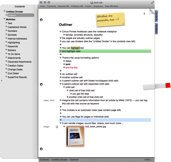
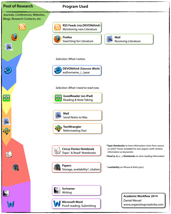
Personally, my outline for my dissertation was a 66.5 MB Circus Ponies Notebook file, containing 333,215 words (> 2.2 million characters, equivalent of about 1305 pages). I made sure to write down everything I did, the results of any analysis, etc. It was more or less structured in the way I wanted to write my dissertation. With this outline next to my writing program (Scrivener), it was possible to come up with a good first draft within a month. Why? Because I first read the whole outline, taking care to move the information that did not fit where it was to the correct place, then sorted each sub-point (e.g,, theory, results of Study 1) in the correct order, and then used this sorted outline that contained all the information I needed to write it as a guideline to write that chapter. Given that the sources were marked in the outline (see Academic Workflow) I did not have to check other sources for the actual writing. I didn’t even have to re-check statistical printouts — it was all in that one huge outline (and then in a smaller one that dealt only with the chapter).

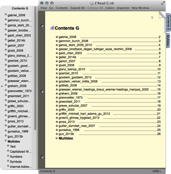
dissoutline dissoutline2

I created the outline before I started to write, during the last year of my PhD. But thinking back, it would have been much easier to create the outline during the whole PhD thesis time, as soon as the topic and the first experiments were decided. Noting the decisions (and the reasons for doing so), the results, etc. while planning and doing the studies would have made it much easier in the end, but it also worked this way.

So, I can only highly recommend creating a detailed outline prior to writing and using it for the writing process. It makes an insanely complex work manageable. :-)

Some Major DokuWiki Adjustments

If you have eight hours to cut down a tree,
it is best to spend six hours sharpening your axe
and then two hours cutting down the tree.
Anonymous, on the benefits of having good tools

Note: As usual with Modifications and Code on this Website: There is absolutely no warranty for any problems, data loss or whatever else happens to you if you try to use it.

I have done a few modifications of my DokuWiki and made a few postings about it (e.g., Ferret, DokuWiki Adjustments). Recently, there were some major changes that lead to the following additional adaptations, which might be useful for some (Doku-)Wiki users.

There were two reasons involved for the changes:

  1. I split my Wiki in a private and a career (science) Wiki. I had them separated at the beginning a few years ago, then joined them due to an overlap of private interests and career topics, but I have recently noticed that I can hold them apart more easily. Also, using the science Wiki in public was difficult due to the amount of private NSFW content with which is was interlaced. Now, both Wikis are separate, the navigation is easier and I no longer have this problem.
  2. I am beginning to transfer my literature notes from Circus Ponies Notebook to DokuWiki. I have thought for some time about it. I love Circus Ponies Notebook and without it, I couldn’t have done my PhD thesis. It is the best program for creating outlines and planning an article or a book, but for long term storage it becomes too sluggish over time, and it is too proprietary. Half a second reaction time might not be that long, but for an Application it is too long. I am used to wait a split second when using the browser, so it does not disturb me there. Furthermore, DokuWiki is too proprietary. Given Apple’s recent development I want to keep my options open in the future. I’ll probably never stop using Apple products (which would mean loose brilliant applications like Scrivener and yes, Circus Ponies Notebook), but having a Plan B is second nature to me. I am not sure whether using DokuWiki this way works better in the long run, so I would not recommend anyone to quit using Circus Ponies Notebook for dealing with literature. It’s a trial and I will see whether it works or not … in about a year.

Regarding DokuWiki, I still think that it is the best Wiki Software if you want to use text files for data saving. And I need text files and I am not a fan of SQL, so MediaWiki (Wikipedia’s Wiki) is not an option. Some of my friends have tried to use DokuWiki for their personal organization of creativity, but few remained with it. I think because it actually requires modification, and if you cannot change PHP code, you will have a hard time using it. Given that you use the Wiki extremely often and invest a lot of time and effort in it, you must like working with it. And given that some functions are missing or do not work like you would like them to be, you will have to adapt it. Unless one spends more time changing the tool than actually using it, that’s all right.
Also check the plugins, they make DokWiki worthwhile.
Good plugins are: cloud, code, gallery, xbr, orphanswanted, pagelist, tag, and wrap.

Now, what were the changes?

New DokuWiki Version installed

DokuWiki has changed a little and I have now installed the current version. I never touch a running system and I would not want to update from an earlier version, but starting two new Wikis and bleeding my old Wiki dry made this a no-brainer. In usage, there were some tiny improvements (like with bullet point lists). Now, if the author would only include an option for natural linebreaks, I’d be happy. ;-)

New Monobook Template

There is a really good template called monobook that makes DokuWiki look like Wikipedia. Easily configurable with quick navigation tabs above the article and a navigation bar on the left side. I still use Ferret — it is the sole reason that working with a Wiki is anything close to efficient — and it works perfectly with it. If you use it, check the user directory in the template/monobook directory. Especially the boxes.php, the tabs.php, and the screen.css.

Included a Back Arrow

One thing I really hate is that, after editing an article, using the browser’s back button often brings you back to the edit field. I haven’t found out yet how to avoid that (it’s a security issue to jump over previous pages), so I have changed the templates (Ferret) I use to include a back arrow on the top of the page. It’s really simple:

[[:start|{{:back.gif }}]]====== Literature ======

A nice effect: given that I use headers the arrow is displayed within the first header which looks kinda nice (note: I have the xbr Plugin installed):

back_arrow

While it would be possible to write PHP code that analyzes the address of the page currently edited and make a back arrow with a link that goes to the page one level above (simply be dropping the last “:pagename”), this way worked fine for me, if needed, I change the destination manually (it would take me more than 2 minutes to write this code, so I haven’t done it yet).

Included a Top Arrow

I changed some code to have an up arrow anywhere where an “edit” is displayed. The code still has some bugs but works most of the time (no, I’m not a computer scientist, I’m a psychologist, my science must only work most of the time, not each and every time ;-) ).
It is possible via:

<a href=”javascript:window.scrollTo(0, 0)”><img src=”SOURCE/top.gif”></a>

in /inc/html.php, or you can change (and adapt, see the SOURCE part):

function html_secedit_button($matches){
global $ID;
global $INFO;

$section = $matches[2];
$name = $matches[1];

//dwdw strtolower($str)
if (strtolower($matches[1]) != strtolower($ID)) {
//echo “here: “.$matches[1].”<br>”;
//echo “upper: “.$ID.”<br>”;

$secedit  = ”;
$secedit .= ‘<div>’;
$secedit .= html_btn(‘secedit’,$ID,”,
array(‘do’      => ‘edit’,
‘lines’   => “$section”,
‘rev’ => $INFO['lastmod']),
‘post’, $name);
$secedit .= ‘<a href=”javascript:window.scrollTo(0, 0)”><img src=”SOURCE/top.gif”></a></div>’;
return $secedit;

} //dwdw
}

to prevent that an up-button appears immediately after the title. But it’s buggy and the page must have the same name as the first title.

Changed the toolbar.php

Changed the icon and the code in the inc/toolbar.php to allow me to quickly cite code written in Objective C, using the Code Plugin (by Matthias Watermann). The toolbar commands can be easily changed:

array(
‘type’   => ‘format’,
‘title’  => $lang['qb_code'],
‘icon’   => ‘mono.png’,
‘key’    => ‘c’,
‘open’   => “<code ObjC>”,
‘close’  => “</code>”,
),

I also made the same modifications for code that allows me a <nowiki>…</nowiki>. I use some commands more often than others and if you’re willing to edit the toolbar.php, you can save a lot of typing.

Note: When you edit DokuWiki’s files, sometimes you have to open the local.php in the conf-directory afterwards, change anything (e.g., add a space in a comment) and then save the file to see the effect. Deleting the cache (of DokuWiki) sometimes also helps. (I’m not going to tell you about making backups of all your data first!)

Installed and changed the WRAP Plugin

A very helpful plugin to highlight certain parts of the page is WRAP. I changed the code to include a title by default and use it to remind me how to deal with the changes, e.g., in the literature-directory. You have to edit the action.php in the plugin’s directory (wrap) and include the title code in the ‘open’ command:

‘open’   => ‘<WRAP center round info 60%>//**__TITLE__**//\n\n’,

Changed the Headlines

I already used colors to differentiate between the different levels, but now I “excluded” the top level (page name). You can easily do this by editing the screen.css in the monobook/user folder of the monobook template

p {
margin-left: 1em;
}

h1, h2, h3, h4, h5, h6 {
color: black;
background: none;
font-weight: bold;
margin: 0;
margin-top: 1em;
padding-top: 0;
padding-bottom: 0;
padding-left: 0.5em;
}
h1, h2, h3, h4, h5, h6 {
border-bottom: none;

font-size: 1em;
}
h1 { font-weight: bold; font-size:130%; border-bottom: 1px solid #aaa; border-top: 1px solid #aaa; background-color: Honeydew; }
h2 { background-color: PaleGreen; }
h3 { background-color: LightBlue; }
h4 { background-color: LightGoldenrodYellow; }
h5 { background-color: LightPink; }
h6 { background-color: BurlyWood; }

and changing “Top level for table of contents” in the DokuWiki config to “2″.

Changed the Workflow for Adding Information

I had already done this for my private Wiki. I add an Idea with Ferret by typing the title, click “create new” and type the idea. Even quick than using a program like Word. Adding information, especially literature, but also community information (people, conferences, journals, tools) to my science wiki was not so easy. Until now. Now I have changed Ferret so that I can create new files the respective directories (literature, people, conferences, journals, tools) and use tags in combination with pagelist to have them integrated automatically in my Wiki. I simply enter the short name (e.g., author_year for an article), click on the radiobutton that decides where the file will be created (e.g., literature), and press “create new”.

Each of these topics has, for example, a page for the “complete list”. For Literature for example:

[[:literature|{{:back.gif }}]]
====== Literature List ======

{{topic>literature}}

====== eof ======

Pagelist (via {{topic>}}) searches all entries that are tagged with “literature”. Given that my template for Literature includes this per default, all files in the literature directory will appear here. But this is also possible for specific subtopics. And the great thing about tags is that you can combine them. For example, wanting to see a list of Literature that deals with electronic guidebooks in museums, I simply use a page that displays all files tagged with “mobile media” and “museum”:

[[:literature|{{:back.gif }}]]
====== Literature: Museum Guides ======

{{topic>literature +mobile_media +museum}}

~~NOCACHE~~
====== eof ======

This enables me to concentrate on entering and retrieving information, DokuWiki will make it available automatically. Given that I use similar tags for literature, people, conferences, journals, and tools, I use the same overview lists in all areas (the tags literature, people, conferences, journals, tools differentiate between the sections; i.e., the examples above only display literature, but no tools, because the tools entries do not include the literature tag).

Created Templates for Literature, People, Conferences, Journals, and Tools

Given the strong focus on ease of information entry and availability when needed, I created templates for my literature (available in Ferret). For example, an article template looks like this:

[[:literature|{{:back.gif }}]]
====== Template – Article ======

[[#Abstract]] | [[#Theory]] | [[#Research Question(s)]] | [[#Method]] ([[#Design]], [[#Participants]], [[#Instruments]], [[#Procedure]]) | [[#Results]] | [[#Discussion]] | [[#Conclusion]]

* **Citation:** xxxx
* **Source:** PDF
* **Key-Points**
* xxxx
* **Strengths**
* xxxx
* **Weaknesses**
* xxxx

—-

===== Abstract =====

===== Theory =====

===== Research Question(s) =====

===== Method =====

==== Design ====

==== Participants ====

==== Instruments ====

==== Procedure ====

===== Results =====

===== Discussion =====

===== Conclusion =====

~~NOTOC~~

{{tag>literature article}}
====== eof ======

or like this in the templates.htm of Ferret:

if(pagetype == “article”) {
tagline = “[[:literature|{{:back.gif }}]]\n====== ” + titelnameheader + ” ======\n\n[[#Abstract]] | [[#Theory]] | [[#Research Question(s)]] | [[#Method]] ([[#Design]], [[#Participants]], [[#Instruments]], [[#Procedure]]) | [[#Results]] | [[#Discussion]] | [[#Conclusion]]\n\n  * **Citation:** xxxx\n  * **Source:** PDF\n  * **Key-Points**\n    * xxxx\n  * **Strengths**\n    * xxxx\n  * **Weaknesses**\n    * xxxx\n\n—- \n\n===== Abstract =====\n\n===== Theory =====\n\n===== Research Question(s) =====\n\n===== Method =====\n\n==== Design ====\n\n==== Participants ====\n\n==== Instruments ====\n\n==== Procedure ====\n\n===== Results =====\n\n===== Discussion =====\n\n===== Conclusion =====\n\n\n~~NOTOC~~\n\n{{tag>literature article}}\n====== eof ======”;
};

which is chosen via

<b>Lit:</b> <a href=”javascript:transfertitel(‘article’,document.Jswdata.Seitentitel.value)”>Article</a>

Videos are not loaded on default

I also took one aspect of Circus Ponies Notebook and integrated it in my Wiki: Using JavaScript to expand cells. In the Lecture template this prevents the loading of the video when I open the page.

lecture_wiki_1

I have to press “Display Video” Link to see the video (and to allow Firefox to load it).

lecture_wiki_2

Given that I rarely want the see the video when I open the page but rather my notes, and that each loading of a video causes a spike in the CPU load and takes time (split-second), this is very comfortable. Unfortunately, the code is not mine, so I cannot show it here. Simply export a page to HTML in Circus Ponies Notebook and have a look at the JavaScript Code.

“Converter” from Circus Ponies Notebook to DokuWiki

I’ve entered a few hundred pages in my Circus Ponies Notebook file. I’m not going to re-enter them in DokuWiki. So I wrote a simple PHP script where I paste the content of a page (each cell must be expanded by pressing expand all) in a textarea and press a button that changes the content into a bullet point list. Basic, trivial, but it works for now. I keep the hierarchical information (mostly, line breaks in a cell are a problem) and can quickly move my content into the DokuWiki. CPN’s HTML export is not an option, it’s confusingly written and will not work fine with DokuWiki, even when included in <html>-tags. I include the file for Ferret here, but keep in mind that it was a very quick and semi-dirty solution (and read the Ferret posting to understand how it works).

zip.png

cpn_import.htm.zip

It also has a decrease on level function (working in the textarea of the file, not in the Wiki textarea) that removes one level of the bullet point list (for example, book chapters might be the top level in CPN but would make more sense to use chapter headings in Dokuwiki for them instead of a first level bullet point). But it’s a work in progress, future ideas are a “remove empty lines” (make sense in CPN but not in DokuWiki bullet point lists) and an increase bullet point level (easy but takes more than 2 minutes). The transfer button only works if the textarea in the Wiki is empty (and, consequently, you are in edit mode).

That’s everything for now. But like I said, it’s a work is progress, worthwhile, but it will take a while. ;-)

More about this topic

Update

Important Note for all Mac Users: I wanted to open PDF Documents in Firefox, unfortunately, although I have installed Acrobat Professional it was not possible. At least not without a Plugin. After installing the Firefox PDF Plugin for Mac OS X 1.1.3 it works like a charm and really facilitates work with PDF-files in DokuWiki. One of the next steps is adding another Frame where the PDF file is on the left side and the page where the PDF-file is located is on the right side. This way I can easily make notes to documents directly in my Wiki. :-)

Circus Ponies Notebook and Scrivener for Writing

Quick Summary: Short remark about two of my favorite programs for writing projects.

Steve Jobs once said: “Computers are bicycles for the mind.”.

Circus Ponies Notebook and Scrivener exemplify this sentence for me.

I could not have written my diploma thesis without Circus Ponies Notebook and I wouldn’t have been able to finish my PhD thesis without both Circus Ponies Notebook and Scrivener. Continue reading

Circus Ponies Notebook for Academic Writing (e.g., Thesis Writing)

Quick Summary: Describing my academic (reading) work flow and using Circus Ponies Notebook to write articles with the read material.

I have written an entry about Circus Ponies Notebook (CPN), a program I can only highly recommend for collecting and structuring information for writing projects. You might want to read that entry first.

In this entry, I’m going to give a short overview of how Circus Ponies Notebook can be used for academic writing (e.g., writing of a diploma or PhD thesis or an scientific article).

Academic Work Flow

What do you need to write a scientific text? Besides skill and training, you need to have the information available (with their sources) in the right order. Continue reading

Circus Ponies Notebook: The Best Tool for Structuring Creative Writing Projects (esp. Research Projects)

Quick Summary: Describing the main functions of Circus Ponies Notebook to illustrate its suitability for structuring projects.

Nothing is particularly hard if you divide it into small jobs.
Henry Ford

If there is one thing that has helped me to get my diploma in psychology and will hopefully help me to get my PhD in it too, it’s Circus Ponies Notebook. While I did the writing of my PhD thesis with Scrivener (a program I can only recommend for it), the information for the writing “marathon” (took me about 27 days to write 59.820 words or 378.535 characters, resulting in about 250 pages) was all collected and structured in Circus Ponies Notebook first.

Overview

Circus Ponies Notebook (CPN) is easy to underestimate. On the first glance it’s simply the digital version of a paper notebook. It takes a second look to realize how extremely powerful a digital “paper” notebook can be. Why would anyone want to have a digital notebook? Isn’t this just a plaything? Nope, it’s not.

Continue reading